Teams meetings, without a notetaker guest.
Many workplaces reject mystery bots. Record from your computer instead, then get the write-ups you need when the call ends.
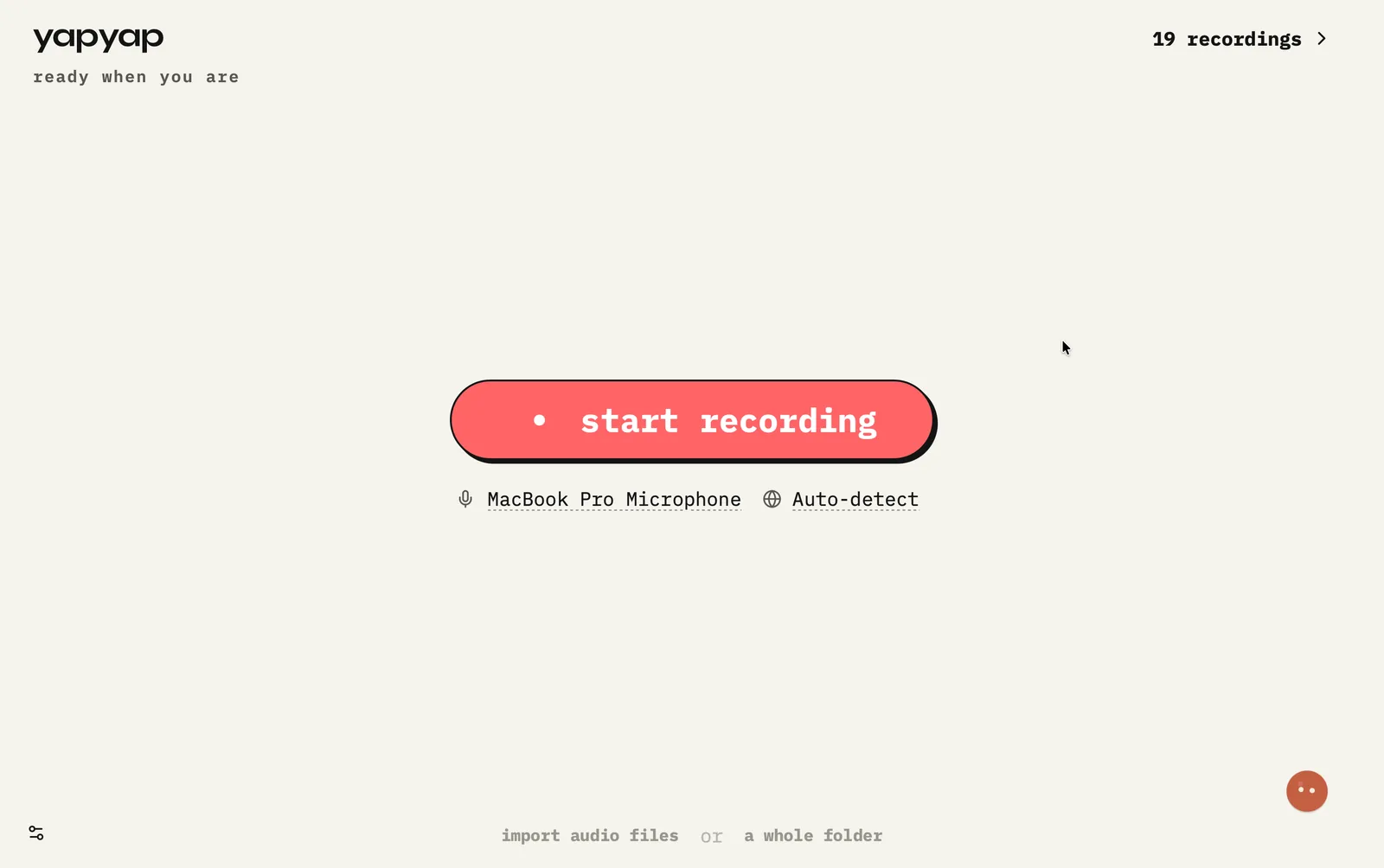
In short: join Teams normally. yapyap never appears on the participant list. It records on your side and keeps the archive local unless you export.
How to record Microsoft Teams
- Open Teams. Join the meeting as you usually do.
- Start yapyap on the same machine so it captures your mic and the call audio.
- After you stop, use a lens for actions or a summary for follow-up.
What you get
- Fits how you already join Teams.
- Speaker-aware notes for follow-ups.
- No requirement to sync into a vendor workspace.
If this happens
- A locked-down work laptop: yapyap records your own mic and speaker output, and never touches the Teams tenant.
- Someone starts the official Teams recording too: both run, and they do not conflict.
- Desktop app or browser: either works, because capture happens below both.
FAQ
- Is there a Microsoft Teams bot for yapyap?
- No. yapyap never joins Teams as a guest. It records from your computer so private customer calls stay quieter.
- Can I still get action items after a Teams meeting?
- Yes. Run a lens on the recording for summaries or actions without uploading the call to a SaaS notetaker.
- Will IT see yapyap in our Teams tenant?
- No. It never connects to Teams and never appears as a participant or an app. It records the audio on your machine.
Record your meetings. See who spoke. Turn one recording into the write-up you need, on your computer, with no cloud account.
Download yapyap
Free to try. No card, no account.
Then €69, once. Yours forever, every update included.
Your recordings never leave your computer.